Student Management Filters
Introduction
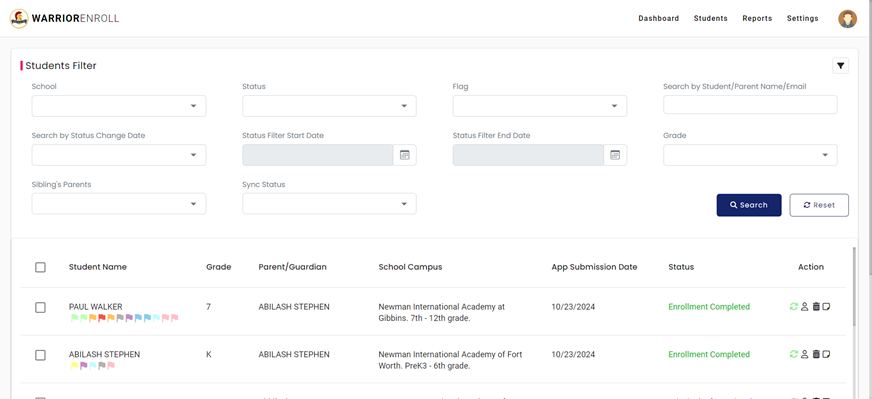
The Students page allows you to filter and view detailed information about the students. You can apply various filters to narrow down the list of students based on specific criteria.
Available Filters:
- School
- Status
- Flag
- Search by Student/Parent Name/Email
- Status Change Date
- Status Filter Start Date
- Status Filter End Date
- Grade
- Sibling’s Parents
- Sync Status
You can also search for specific students and reset the filters as needed.
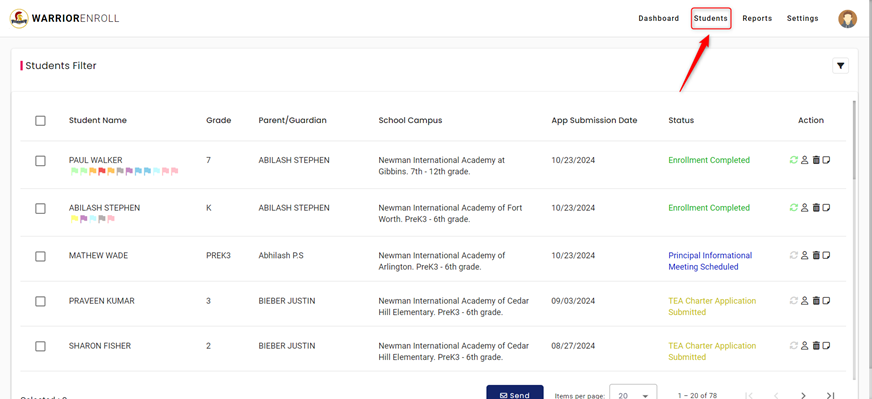
1. Accessing the Students Page
To access the Students page:
- Click on the “Students” tab located in the top navigation menu between the Dashboard and Reports tabs
2. Using the Filter Section
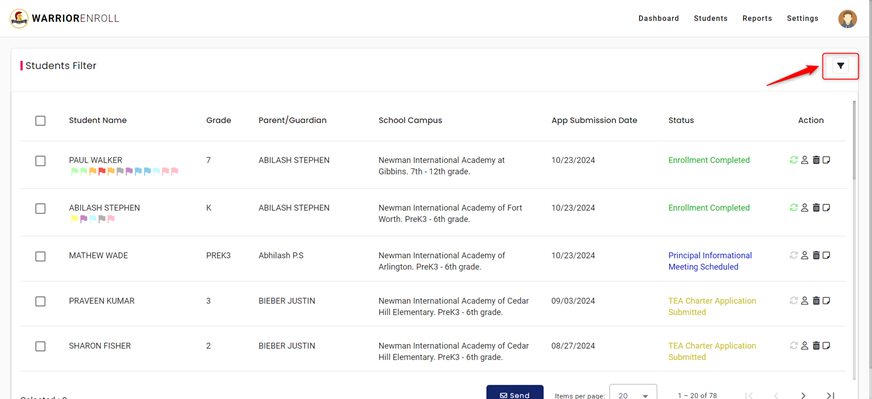
The filter section allows you to search for specific students based on various criteria. To filter the students:
- Click on the “Filter” button located at the top right corner below your profile picture.
- You will see all the available filter fields.
3. Filter Categories
Students Filter
- School:
- To filter by school, click on the “School” dropdown menu.
- Select the desired school to filter the student list.
Status Filter:
- Click on the “Status” dropdown field to filter students based on their current status.
- Select the desired status from the dropdown list.
Flag:
- Click on the “Flag” dropdown field to filter students by their flag status.
- Flags are color-coded and are displayed under the “Student Name” column.
- Choose a flag to filter the student list by that specific flag.
Search Filters:
- Search by Student/Parent Name/Email:
- In the “Search by Student/Parent Name/Email” field, type the name or email address of the student or parent to search for them directly.
Search by Status Change Date:
- Click on the “Status Change by Date” dropdown to filter students by when their status changed.
Status Filter Start Date:
- Click on the “Calendar” icon next to the “Status Filter Start Date” field to filter students by the date their status was updated.
- Select the start date from the calendar.
Status Filter End Date:
- Similarly, click on the “Calendar” icon next to the “Status Filter End Date” field to choose an end date for filtering by the status change date.
- Select the end date from the calendar.
Grade Filter:
- In the “Grade” dropdown field, you can filter students by their grade level.
- If you select “PREK3” or “PREK4”, a new field will appear labelled “PreK” near the “Sync Status” field.
- In this “PreK” field, you can further specify whether the student is attending AM or PM sessions.
Sibling’s Parents Filter:
- Click on the “Sibling’s Parents” dropdown field to filter students based on the parent name.
- Select the parent's name to filter students who share the same parents.
Sync Status Filter:
- Click on the “Sync Status” dropdown field to filter students based on their sync status.
- Choose the appropriate sync status from the available options.
4. Searching and Resetting Filters:
Search Filters:
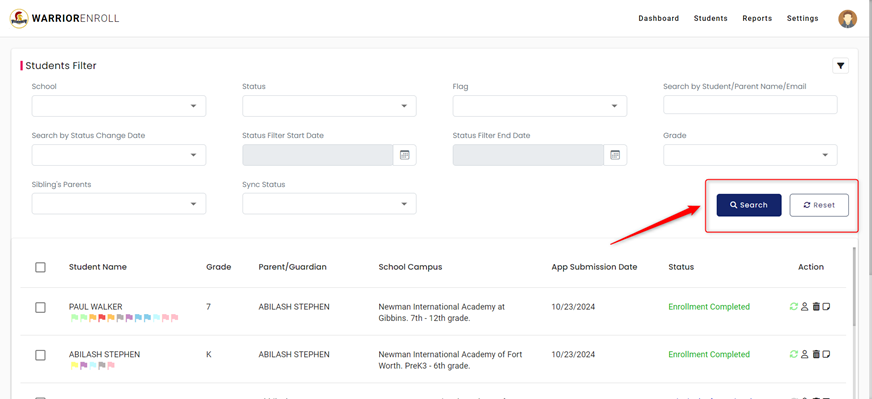
- After applying your filters, click on the “Search” button to view the filtered list of students.
Reset Filters:
- To reset the filters and clear any selected criteria, click the “Reset” button below the filter section.
Was this article helpful?
That’s Great!
Thank you for your feedback
Sorry! We couldn't be helpful
Thank you for your feedback
Feedback sent
We appreciate your effort and will try to fix the article