Students Page and Application Management
1. Introduction
The Students page allows you to view and manage all student details. You can filter and view specific information based on various criteria, including Student Name, Grade, Parent/Guardian, School Campus, Application Submission Date, Status, and Action.
And also can send “Emails”.
2. Accessing the Students Page
To access the Students page:
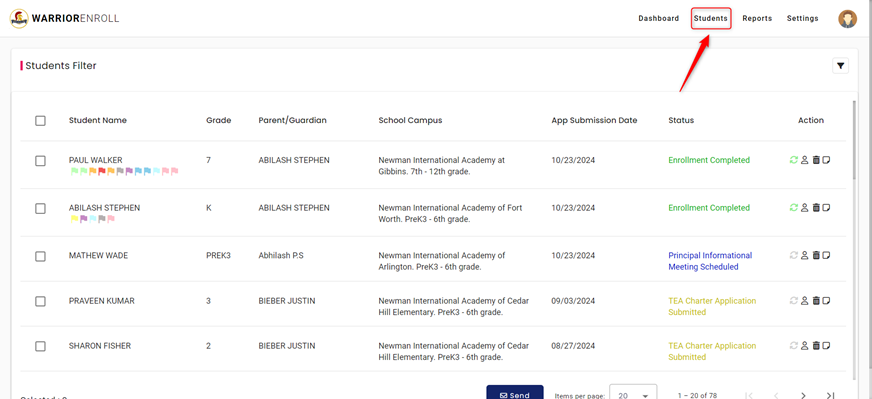
- Click on the “Students” tab in the top navigation menu, located between the Dashboard and Reports tabs.
3. Students Page Overview
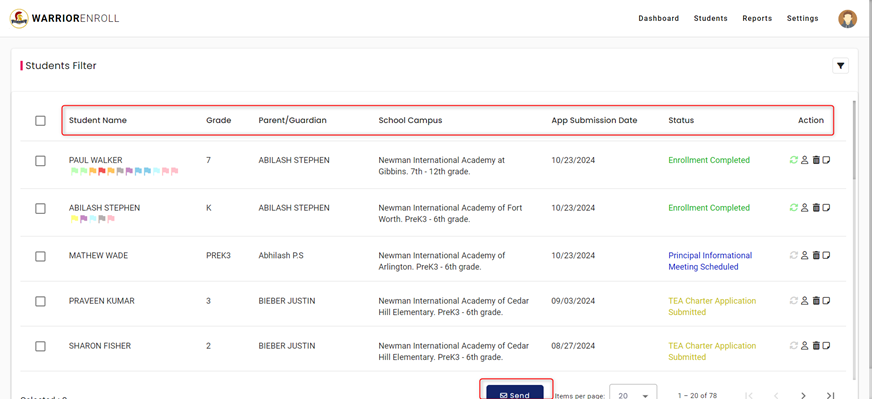
On the Students page, you will find the following columns:
- Student Name
- Grade
- Parent/Guardian
- School Campus
- Application Submission Date
- Status
- Action
- Send Emails
These columns display detailed information about each student and provide options for additional actions.
4. Columns Explained
Student Name
- Under the “Student Name” column, you can view the name of the student.
- Flags related to the student (if any) are also displayed beneath the student's name.
Grade
- Under the “Grade” column, you can view the grade the student is currently enrolled in.
Parent/Guardian
- Under the “Parent/Guardian” column, you can view the name of the parent or guardian associated with the student.
School Campus
- Under the “School Campus” column, you can see the different campuses the student has applied for.
Application Submission Date
- Under the “Application Submission Date” column, you can view the date the student's application was submitted.
Status
- Under the “Status” column, you can see the current status of the student.
- Each status is color-coded for easy identification.
Action
- Under the “Action” column, you can take various actions, including:
- Sync Status
- Profile
- Delete
- Notes
Send Emails
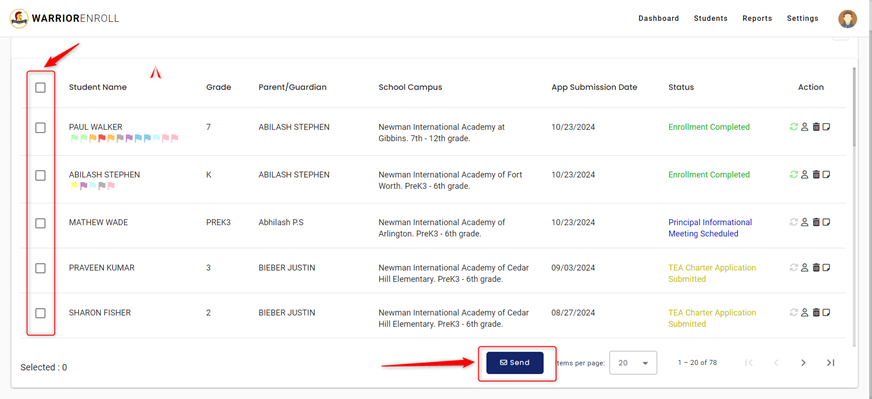
- You can see the “Send” button on the bottom of the page.
- You can select “Single or Multiple” students by clicking on the check box on the left side of the page.
5. Sync Status
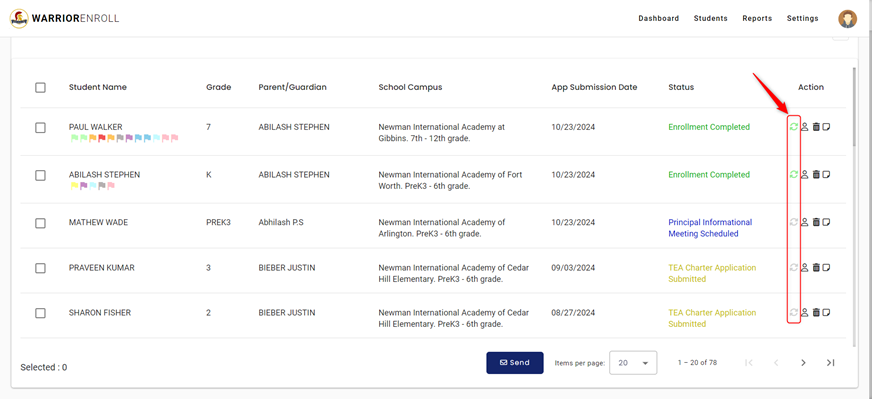
- The “Sync Status” indicator appears in the Action column and is color-coded:
- Yellow: Packet Updated
- Green: Synced
- Grey: Not Synced
6. Delete
- The Delete icon allows you to remove student details from the system.
7. Notes
- Clicking the “Notes” icon will display any notes that have been added for that student.
8. Profile
- Clicking the “Profile” icon will open a new page where you can view more detailed information about the student.
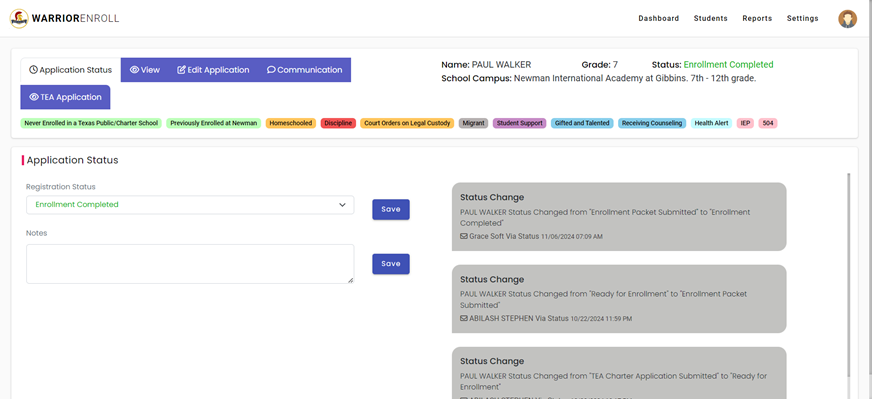
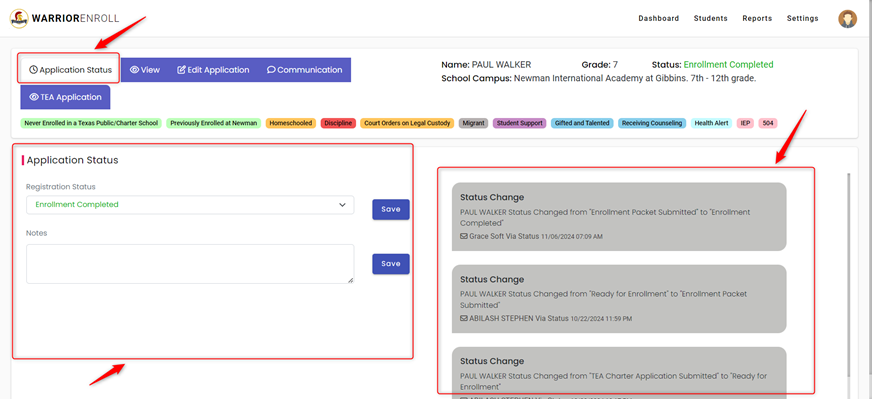
8.1 Application Status
- On the left section of the profile page, you will find the “Registration Status” and “Notes” fields. You can save any changes by clicking the “Save” button near these fields.
- On the right section, you can view the “Status Change” and any changes made to the application.
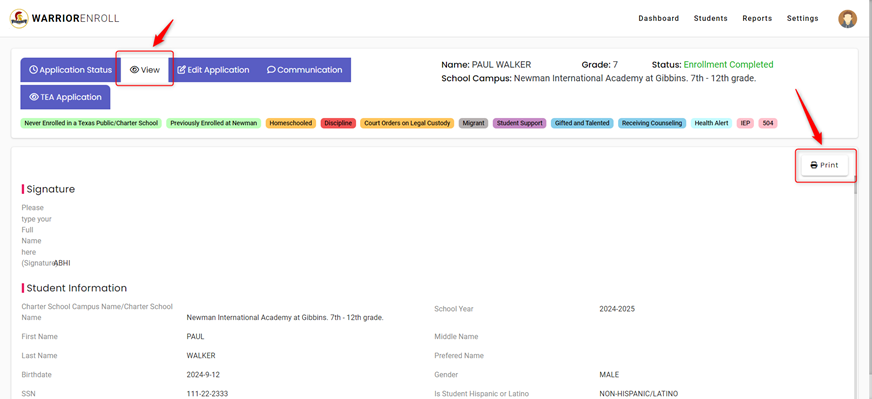
8.2 View (Preview)
- In the “View (Preview)” section, you can preview the student's application and download any associated documents, such as images, certificates, etc.
- You can also click the “Print” button in the top right corner to print the application.
8.3 Edit Application
- In the “Edit Application” section, you can modify the student’s application details.
- And need to click on the “Save&Next” button on the bottom of the page to complete and proceed to next field.
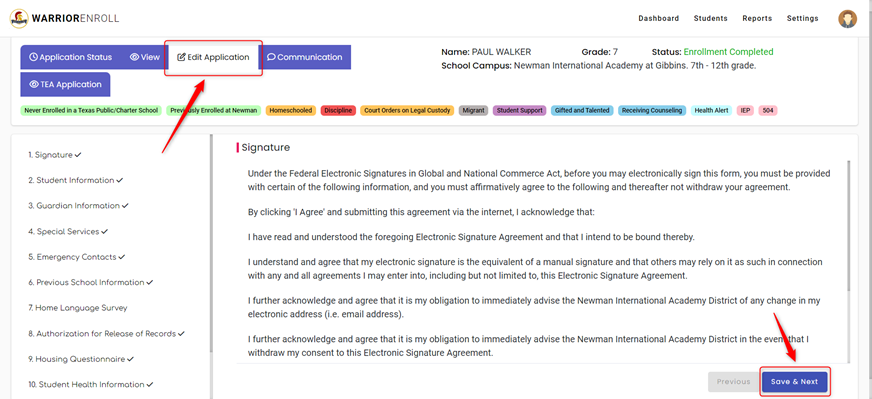
- Signature: Requires a signature from the guardian to verify the information provided.
- Student Information: Includes details such as name, student ID, and the program the student is enrolled in.
- Guardian Information: Displays the guardian's information, including name, contact details, and relationship to the student.
- Special Services: Identifies any special services or support the student may need, such as counselling or gifted education.
- Emergency Contacts: Allows the parent to list emergency contacts, including their relationship to the student and contact number.
- Previous School Information: Collects details about the student's previous school.
- Home Language Survey: Identifies the primary language spoken at home to assess if language support services are required.
- Authorization for Release of Records: Requests authorization to release student records to other institutions.
- Housing Questionnaire: Collects information about the student's housing situation and preferences.
- Student Health Information: Includes medical history, such as allergies and conditions.
- NIA Socio-Economic: Gathers socio-economic data to determine eligibility for aid or support services.
- Required Documents: Lists the necessary documents for enrolment, such as identity proof and academic records.
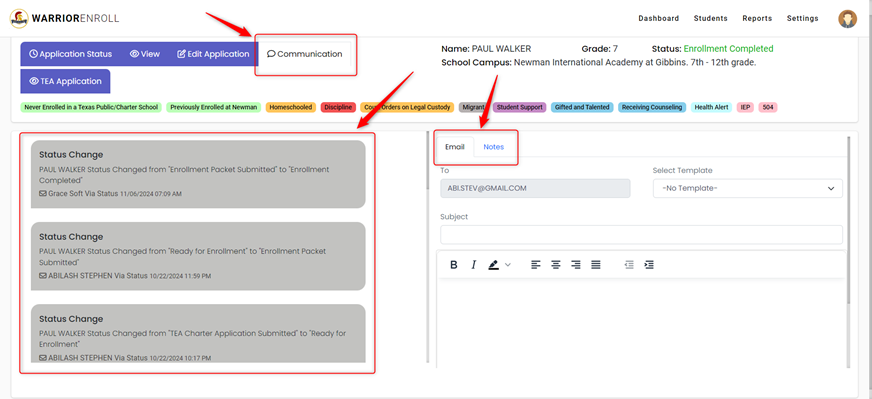
8.4 Communication
- In the “Communication” section:
- On the left side, you can view the status change history, email communications, etc.
- On the right side, you can send emails and add notes for the student.
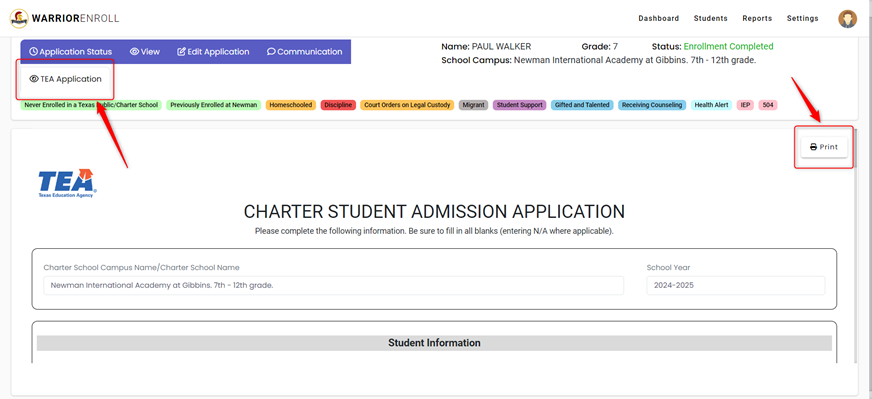
8.5 TEA Application
- In the “TEA Application” section, you can view the student's Admission Application.
- You can also click on the “Print” button in the top right corner to print the application.
Was this article helpful?
That’s Great!
Thank you for your feedback
Sorry! We couldn't be helpful
Thank you for your feedback
Feedback sent
We appreciate your effort and will try to fix the article