Admin Portal – Email Configuration
To set up your email configurations for notifications, confirmations, and communications within the system, follow the steps below:
Steps to Configure Email:
- Access Settings
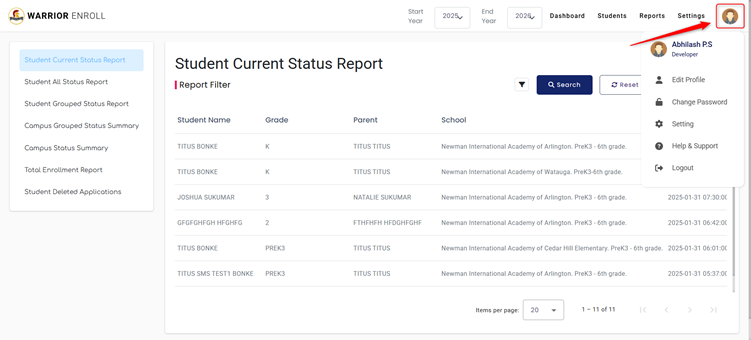
- Click the profile picture at the top right corner of the Admin Portal.
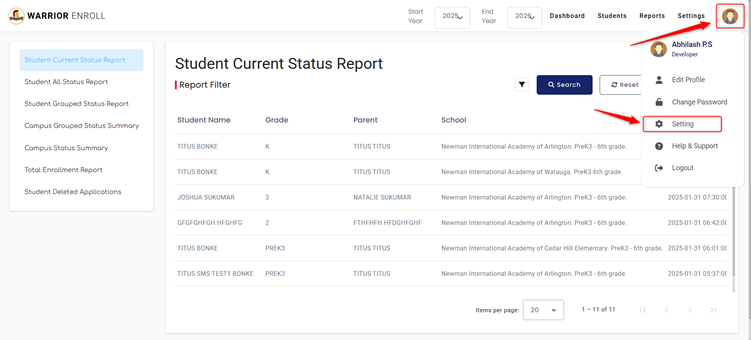
- From the dropdown menu, select Settings.
- Email Configuration
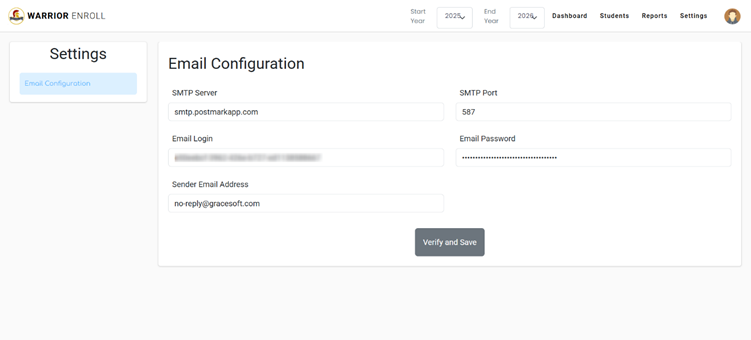
- In the Settings section, the Email Configuration page will be displayed.
- Configure Email Settings
- Fill in the following fields:
- SMTP Server – Enter your outgoing mail server address.
- SMTP Port – Specify the port number used by your SMTP server.
- Email Login – Enter the email username or login credential.
- Email Password – Provide the password for the email login.
- Sender Email Address – Specify the email address that will appear as the sender in outgoing messages.
- Fill in the following fields:
- Verify & Save
- Click the Verify button to ensure the credentials and server details are correct.
- Once verified, click Save to apply your email configuration settings.
Was this article helpful?
That’s Great!
Thank you for your feedback
Sorry! We couldn't be helpful
Thank you for your feedback
Feedback sent
We appreciate your effort and will try to fix the article